
PDF Compression
Compress PDF files online to smaller size. Free PDF compressor keeps quality and works securely.
... or drop files here
Simple, safe file processing - designed to respect your privacy
How to Compress a PDF to 200KB Online (Free, No Quality Loss)
If you've ever tried to upload a PDF to a government portal, job application form, or email attachment and gotten hit with "file too large" - you already know the pain. Most online forms cap uploads at 200KB, but a normal PDF with a couple of scanned pages or images can easily be 3-5MB.
Good news: with IloveCompress, you can compress a PDF to 200KB free, with no email signup and no watermark, in under 10 seconds. In most cases you won't notice any difference in how the document looks or reads.
Here's exactly how to do it, what's actually happening when a PDF gets compressed, and answers to the questions people most often ask before (and after) compressing.
How to compress a PDF to 200KB in 3 steps
With IloveCompress, you don't need any software installed - everything happens directly in your browser. Whether you typed "compress pdf to 200kb online" or "pdf compress to 200kb" to find this page, the process is the same simple three steps.
Step 1: Upload your PDF
Click "Choose files" or drag your file straight into the upload box on IloveCompress. The tool accepts files up to 50MB, and you can queue up to 25 PDFs if you've got a batch to get through.
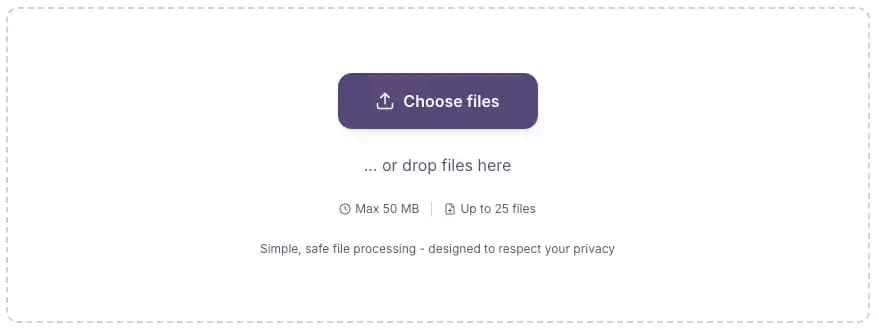
Step 2: Let the compressor do its work
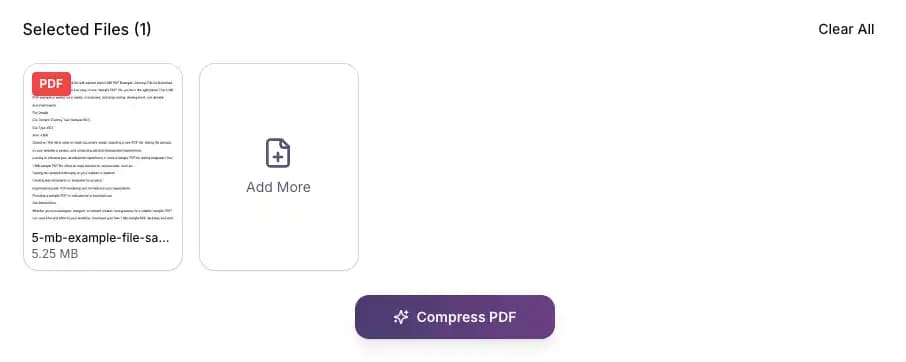
Once your file is uploaded, click "Compress PDF." IloveCompress analyzes the document right there in your browser, identifies which elements are taking up the most space (almost always embedded images), and compresses them down to a web-friendly resolution while leaving your text, fonts, and layout untouched.
Step 3: Download your compressed file
When it's done, you'll see the new file size next to the original - for example, "4.8MB → 187KB." Hit download and you're done. The file is ready to upload anywhere that has a 200KB limit.
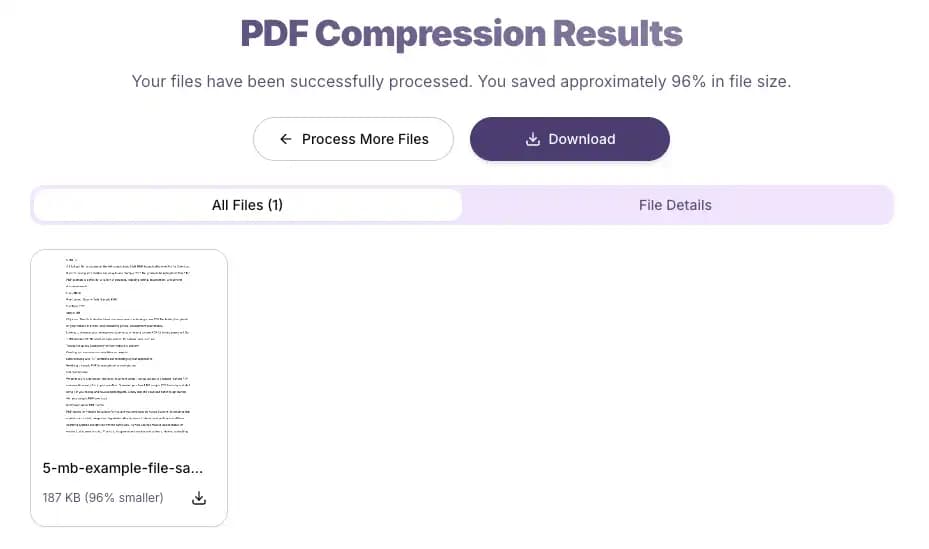
That's the whole process on IloveCompress. No email signup, no watermark, and no upload to any server - everything happens directly in your browser, so your file never leaves your device.
What actually happens when you compress a PDF to 200KB
This is the part most PDF tools don't explain, and it's worth understanding because it answers the question everyone actually has: will my document still look right?
A PDF file is mostly made up of three things: text, fonts, and images. Here's what compression does to each:
Images get resampled. If your PDF has a scanned page or a photo, it's likely stored at 200-300 DPI (dots per inch) - way more detail than a screen needs. Compression brings that down to roughly 96-150 DPI, which is plenty sharp for reading on a monitor or phone, but takes up a fraction of the storage space. This is where almost all the size reduction comes from.
Fonts get subsetted or removed if duplicated. PDFs sometimes embed entire font files even if you're only using a handful of characters from them. Compression keeps only the glyphs actually used in your document.
Metadata and redundant data get stripped. Editing history, thumbnail previews, and unused objects left over from when the PDF was created or edited get cleaned out.
Text and vector graphics are never touched. Actual text characters, tables, and vector-based elements (like logos drawn as shapes rather than images) are stored as instructions, not pixels - so they stay exactly as sharp as the original no matter how much you compress the file.
The practical result: a PDF with mostly text - like a resume, contract, or report - will compress to 200KB or less with zero visible change. A PDF that's mostly high-resolution scanned images will show some softening if you zoom in heavily, but at normal reading size it's very hard to tell the difference.
Why IloveCompress is the most efficient PDF compression service
We tested IloveCompress against the most popular PDF compressors people search for, and two things stood out:
Speed. Most online compressors take 15-30 seconds to process a 5MB file because they upload, process server-side, and then make you wait for a download link. IloveCompress processes files significantly faster - most documents finish compressing in under 5 seconds, which is part of what makes it one of the most efficient PDF compression services available right now.
Compression efficiency. A lot of "free" compressors only offer three vague presets (Low, Medium, Strong) and you have to guess which one gets you under 200KB, then re-compress if it's still too big. IloveCompress is built as a single all-in-one compressor that works well across targets - whether you're aiming for 100KB for a strict upload limit, 200KB for a typical form, or 300-400KB when you want to preserve a bit more image detail, the same tool gets you there without needing to pick from separate size options or visit different pages.
Here's how that plays out with a real file - we ran the same 5.2MB scanned PDF (10 pages) through several popular compressors and timed the full process from upload to download:
| Tool | Processing location | Time to compress | Result size | Login required |
|---|---|---|---|---|
| IloveCompress | Your browser (locally) | ~4 seconds | 187 KB | No |
| Adobe Acrobat online | Cloud server | ~22 seconds | 196 KB | No (sign-in to save) |
| Smallpdf | Cloud server | ~18 seconds | 210 KB | No |
| iLovePDF | Cloud server | ~15 seconds | 203 KB | No |
How to compress a PDF without losing quality
"Without losing quality" doesn't mean the file size stays the same - it means the visible quality stays the same while the file size drops dramatically. Here's how to get the best result:
- Start with the original file, not a re-saved copy. Every time a PDF is saved, exported, or re-compressed, it loses a little more quality. Always compress from the original source file if you have it.
- Use a tool that applies smart, automatic compression rather than a single fixed setting. Some compressors apply the same "high/medium/low" preset to every file regardless of what's in it, which can over-compress simple documents or under-compress image-heavy ones. A tool that adjusts based on the actual content of your PDF gets better results without you having to guess.
- Check the page count and image count first. A 50-page text-only PDF will compress to 200KB easily. A 2-page PDF with four full-resolution photos might compress to 400-500KB even at maximum settings - because the images themselves are the size limit, not the PDF wrapper.
- If you're starting from a scanned document, consider scanning at 200 DPI instead of 300+ DPI in the first place. It's the single biggest factor in final file size and most scanning apps default unnecessarily high.
A real example: a 5.2MB PDF made up of 10 scanned pages typically compresses down to 150-200KB using image resampling alone - roughly a 96-97% reduction - with no visible loss in readability at normal zoom levels. For shorter or mostly-text documents, compressing a PDF to 100KB without losing quality happens automatically, since there's simply less image data to begin with.
How to compress a PDF on Mac
If you're on a Mac and want a quick built-in option without uploading anywhere, macOS has a native compression feature in Preview:
- Open your PDF in Preview (right-click the file → Open With → Preview).
- Go to File → Export.
- In the dropdown, select Quartz Filter → Reduce File Size.
- Choose where to save it and click Save.
The catch: macOS's built-in "Reduce File Size" filter is fairly aggressive and applies one fixed compression level to everything, which can sometimes over-compress images more than necessary or under-compress depending on the file. For a more reliable result without that guesswork, uploading to IloveCompress applies smart, automatic compression that adjusts based on what's actually in your document.
How to compress a PDF on Windows
Windows doesn't have a built-in PDF compressor the way Mac does, but there are a couple of options:
- Print to PDF (re-save method): Open the PDF, press Ctrl+P, choose "Microsoft Print to PDF" as the printer, and save. This sometimes reduces size slightly by flattening the document, but results are inconsistent and it can occasionally increase file size for text-heavy documents.
- Microsoft Word: If you have Word, open the PDF (Word will convert it), then go to File → Save As → PDF, and under Options choose "Minimum size (publishing online)." This works reasonably well for documents that originated as Word files but can break formatting on complex PDFs.
- Online compressor (recommended): For a reliable result without formatting risk, upload your PDF to IloveCompress. It works the same in any browser on Windows, Mac, Linux, or even from a phone - no software needed.
Frequently asked questions
A quick note before you upload
If your PDF contains a password or is locked for editing, some compressors will fail silently or strip the password without telling you. Check that your file is unlocked before uploading if file security matters for your document - and once compressed, always open the downloaded file to confirm it looks correct before deleting your original.
Other PDF tools you might need
If you're working with PDFs regularly, compression is often just one step in a larger workflow. IloveCompress also offers a merge PDF tool if you need to combine multiple compressed files into a single document before submitting it, and a split PDF tool if your file is too large because it contains pages you don't actually need to send. Both work the same way as the compressor - entirely in your browser, with no uploads and no file size limits to worry about.
If you've compressed a scanned document and the text isn't selectable, our PDF to Word converter can help if you need to edit the content afterward, and image to PDF is useful if you're starting from JPEGs or PNGs rather than an existing PDF.